
Debit Cards
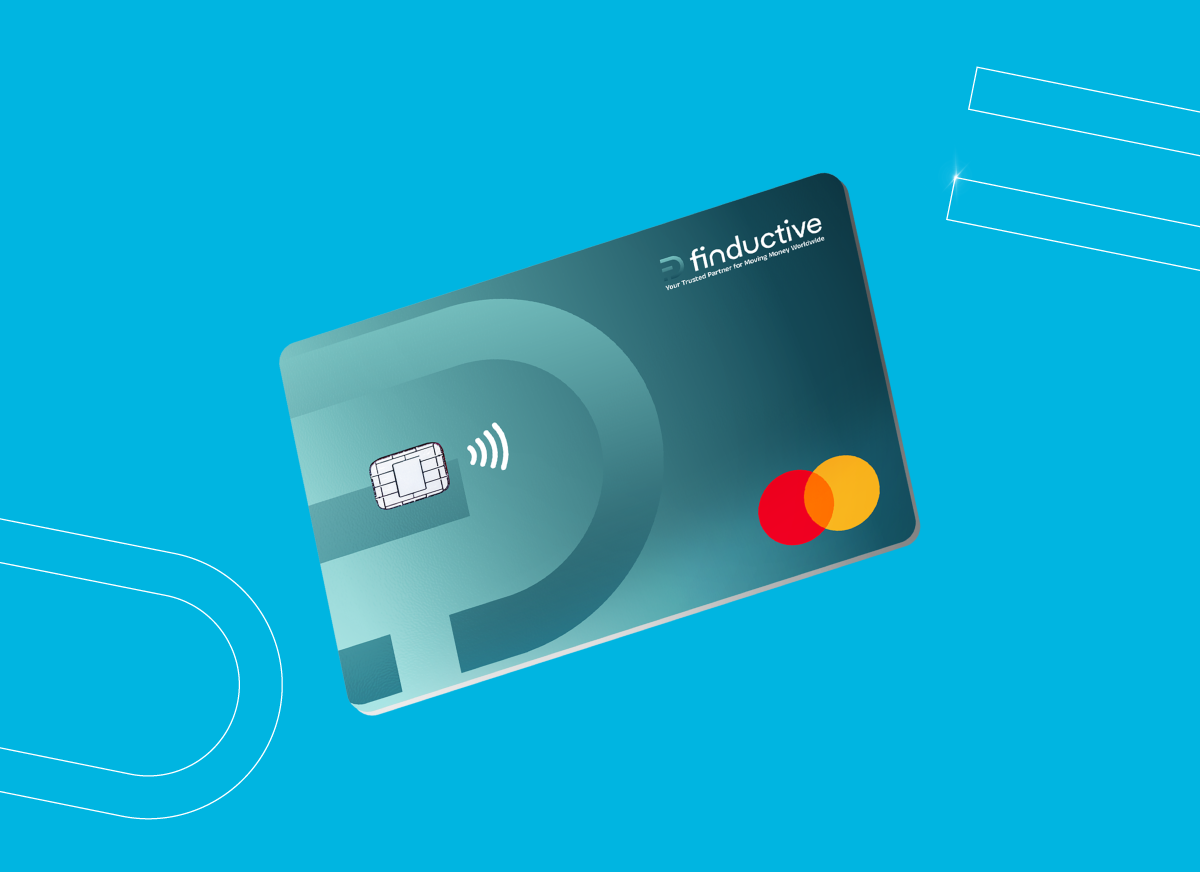
Access your funds whenever you need with the sleek and modern Finductive debit card. You will be able to make payments wherever you are and choose the currency that you want to pay in.
Created for your convenience
Created for your convenience. Pay in a way that suits you. ATM withdrawals, online or in-store! Giving you access to the funds in your Finductive account how and when you need!
Multi-Currency Debit Card
Linked to your Finductive payment account, you can pay in your chosen currency, making payments across borders easy and streamlined.
Card Security
Take control of your cards. If anyone loses or misplaces a card, you can lock it or cancel it at any time. Ensuring your funds are always safe and secure.
User Manual - FAQs
Q: What are “linked accounts” for a debit card?
Each debit card is linked to one or more funding accounts. These linked accounts determine the available balance for card transactions.
Q: Which account currencies are supported in the example setup?
In the example setup, supported linked account currencies are:
EUR (Main Account)
USD
GBP
Q: Where can I view and manage my linked accounts?
Linked accounts can be viewed and managed from the card details screen.
Q: How do I view my card’s linked accounts?
Go to:
My debit cards → Select the card → Manage my card linked accounts
Q: How do I add or remove linked accounts?
Go to:
My debit cards → Select the card → Manage my card linked accounts → Settings
Q: How do I increase my card limits?
To increase your card limits, please reach out to us via chat or email.
Q: What type of cards are available?
Cards can be issued depending on the customer journey. Card type in this setup:
Debit (linked directly to the customer account balance)
Q: Which card network is supported?
Mastercard (worldwide Mastercard acceptance)
Q: What card forms are available?
Physical card
Virtual card (instant issuing)
A physical card is typically required to request a virtual card.
Q: What is Auto FX conversion?
Auto FX conversion is an optional feature that can reduce declines due to insufficient funds. When a debit card is linked to multiple accounts (e.g., EUR, GBP, USD), transactions are normally settled against the account matching the transaction currency.
If the linked account in the transaction currency (e.g., USD or GBP) does not have sufficient available balance, the system automatically checks the EUR account to determine whether the transaction can be approved.
Q: What happens if my USD/GBP linked account has insufficient funds?
If EUR has sufficient funds, the transaction may be approved using an internal FX conversion.
If EUR does not have sufficient funds, the transaction will be declined.
Any FX conversion applied is subject to applicable rates, fees, and customer terms.
Q: Where can I manage my card features?
Card features are available through the internet banking service and the mobile app. Functions are synchronized with the underlying core banking system and card platform.
Q: How do I order a new debit card?
To order a new debit card:
Navigate to My Debit Cards
Select Get New Debit Card
Choose the card form (Physical or Virtual, if available)
Complete all required fields
Submit the request
After submission, a confirmation message such as “Card ordered successfully” is displayed.
Q: Do I need to activate my card before using it?
Yes. Physical cards must be activated before they can be used for transactions.
Q: How do I activate my card?
Go to My Debit Cards
Select the relevant card
Click Activate the Card and confirm
Q: Can I view or change my PIN?
PIN management allows customers to view their PIN (where permitted), set a new PIN, and check PIN status.
Q: How do I view my PIN?
My debit cards → Select the card → PIN Management → Show PIN → (Eye icon)
Q: How do I change my PIN?
My debit cards → Select the card → PIN Management → Set New PIN
Enter New PIN and Repeat New PIN
Confirm to apply the change
Q: How do I check my PIN status?
My debit cards → Select the card → PIN Management → Get PIN Status
Q: What does freezing a card do?
Freezing a card temporarily blocks usage without cancelling the card. Unfreezing restores the card to an active state.
Q: How do I freeze my card?
My debit card → Select the card → Freeze → Confirm
Q: How do I unfreeze my card?
My debit card → Select the card → Unfreeze → Confirm
Q: How do I submit a card dispute?
Use the dispute flow to report and track issues with card transactions. After submission, a confirmation message is displayed and the dispute appears in relevant list views.
To submit a card dispute:
My debit card → Select the card → Card Dispute → Enter dispute message → Submit
Q: How do I adjust card controls?
My debit card → Select the card → Card Controls → Toggle the required controls on/off
Q: How do I cancel my card?
Cancelling a card permanently stops usage. Use cancellation only when replacement or permanent termination is intended.
To cancel a card:
My debit card → Select the card → Cancel Card → Yes (confirm)
Q: What information is included in a card statement?
Card statements provide an itemized list of transactions for a selected date range, including:
Transaction date
Description
Amount
Status (e.g., Settled, Locked, Declined)
Q: How do I view a card statement?
My debit cards → Select the card → Manage my card
Open the Card Transactions Statement view
Select the preferred date range and apply
Q: How do I download or print a card statement?
In the statement view, click the Print button in the top-right corner.
Q: What should I do if I receive a fraud alert notification via the mobile app?
If you receive a fraud alert notification, please review the transaction immediately within the app and follow the on-screen instructions. If you do not recognise the transaction, take action straight away by reporting it.
Q: I believe there is a suspicious transaction or fraudulent use of my card. What should I do?
If you suspect fraudulent activity, log in to the mobile app or Internet banking platform immediately. From there, you should:
- Freeze your card to prevent further transactions
- Submit a transaction dispute directly through the app
Q: I have a suspicious or fraudulent transaction but cannot access the app or freeze my card. What should I do?
If you are unable to access the app or freeze your card, please contact us as soon as possible using one of the following channels:
- Secure message via Internet banking
- Phone support
- Email: fraud@finductive.com
If you are contacting us outside of working hours, please use the dedicated fraud email address above as your primary point of contact.

Making Payments Smart
We make online payments seamless, offering you an easy and straightforward experience. Enjoy exceptional value, allowing you to concentrate on what truly counts – driving your business forward.